Send a polished invoice in two clicks.
From approved time to a branded PDF your client can pay online. Retainers auto-bill on schedule. Invoices send their own reminders — before and after the due date — so you don't have to.
30-day free trial · No credit card · Every feature included
Built for billing real clients.
Branded PDF
Your company name and address, payment terms, tax rate, and notes — applied to every invoice automatically. Generated server-side via QuestPDF.
Retainers
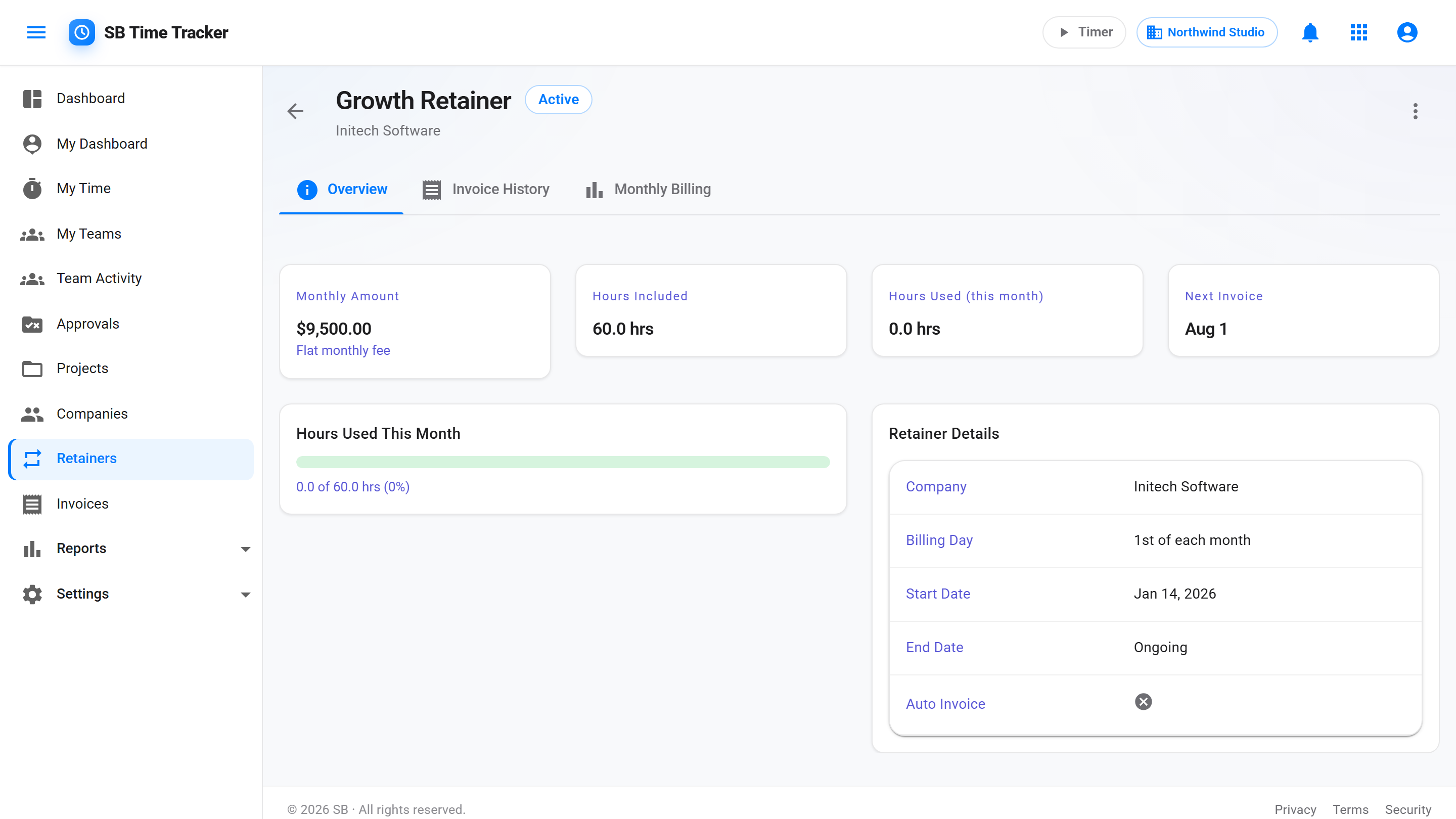
Define a retainer block that bills a set amount each month, with an optional hours allowance for tracking. A draft invoice is created on the billing day you choose (1st–28th), ready for you to review.
Reminders
A friendly nudge before the due date, then a polite reminder, a firmer one, and a final notice at 7, 30, and 60 days past due. One switch turns them off; every email links to the invoice.
Online payment
Connect your Stripe account once and every hosted invoice page takes card and ACH payment. The invoice marks itself Paid when the money settles.
QuickBooks sync
Push customers, invoices, and payments to QuickBooks Online on demand. Re-running never duplicates; anything that can't sync is listed, not silently dropped.
Approved hours roll into line items.
Open the invoice wizard, pick a client and a date range. Approved time entries pre-populate as line items, grouped by project and by person — so each person's billable rate is billed exactly, not averaged. You can see who logged each entry before you pull it in. Toggle quantity-and-rate visibility per line. Add fixed-fee or manual lines. Done.
- Pre-populated from approved time entries
- One line per person per project — per-user rate overrides billed exactly
- Approved billable expenses pull in as their own line items
- See who logged each entry (assignee column) before you bill it
- Per-line toggle: hide quantity & rate, show only total
- Fixed-fee or manual line items
- Tax rate applied invoice-wide
Win the work, then bill it.
Convert an accepted estimate into a draft invoice in one click. A paid deposit comes off as its own line on the draft.
A PDF that looks like you sent it.
Your company name and address, your terms language. Rendered server-side from a QuestPDF template, so the file is the same whether the client opens it on a phone, a Mac, or prints it for their bookkeeper.
- Company name and address in the PDF header
- Configurable Net terms (Net 7 / 15 / 30 / custom)
- Custom payment instructions per tenant
- Embedded notes and thank-you text
- Numbered sequentially per tenant
Recurring revenue, billed automatically.
Set up a retainer for a client — say, $5,000/month with an optional 40-hour allowance for tracking. A draft invoice is created on the billing day you choose (1st–28th), in your company's time zone, for you to review before it goes out. Hours used count approved, billable time in the current billing period.
- Retainers bill a set amount each month, with an optional hours allowance for tracking
- Billed monthly, on the billing day you choose (1st–28th)
- Hours used vs the allowance for the current billing period
- Drafts are created automatically and never sent without your review
Overdue chases itself.
Clients get a friendly nudge before the due date — you pick the lead time. When the due date passes, the invoice flips to Overdue automatically and a three-stage cadence follows at 7, 30, and 60 days past due. Every reminder links to the hosted invoice page, where the client can pay. Stops as soon as the invoice is paid.
- Due-soon nudge before the due date — configurable lead time, up to 14 days
- Auto-overdue on due-date passage
- Three-stage dunning emails at 7, 30, and 60 days past due
- Every reminder links to the view-and-pay invoice page
- One per-company switch turns reminder emails off — status bookkeeping still runs
- Stops automatically on payment
Send a link, not an attachment.
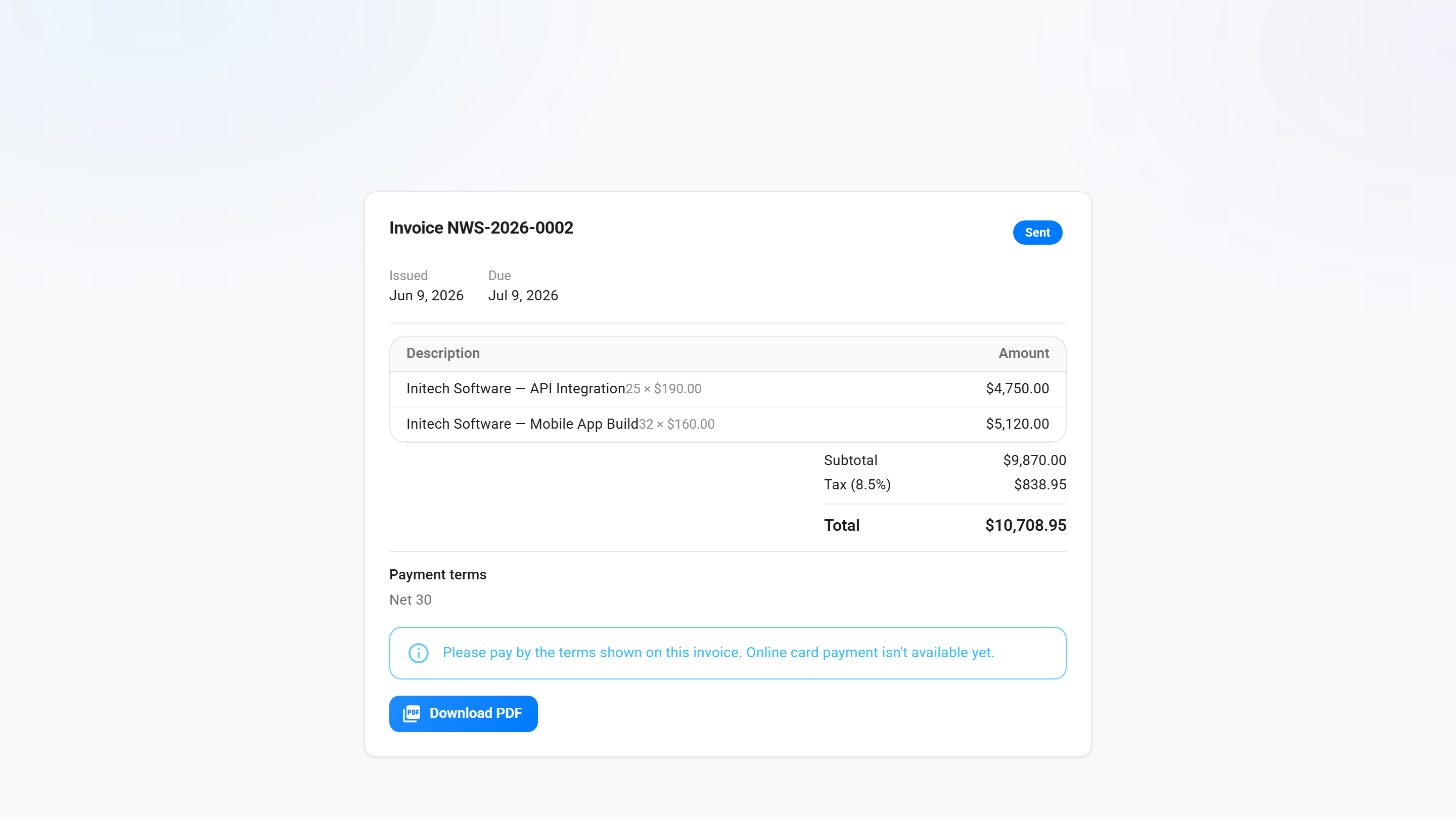
Every sent invoice carries a secure public link. One click — "Send to client" — emails it to your client contact; they open a hosted copy of the invoice with its status, line items, totals, and payment terms, and download the PDF, no login required. Connect your Stripe account under Settings → Online Payments and the same page takes payment — card or ACH, checked out securely on Stripe. The money lands in your own Stripe account and the invoice marks itself Paid when the payment settles. Regenerate or invalidate the link any time so a forwarded copy stops working.
- Hosted view-and-pay page on every sent invoice
- "Send to client" emails the link for you
- Online card + ACH payment — money goes straight to your Stripe account
- Auto-marked Paid when the payment settles, even slow-clearing ACH
- Regenerate or invalidate a link any time
Common questions
Can my client see the invoice online?
Yes. Every sent invoice has a hosted page reachable from a secure link. "Send to client" emails that link; the client opens the invoice — status, line items, totals, payment terms — and downloads the PDF without an account. You can regenerate or invalidate the link at any time.
Can my client pay the invoice online?
Yes. Connect your Stripe account under Settings → Online Payments and every hosted invoice page shows a Pay now button — card or ACH, checked out securely on Stripe. Payments go directly to your own Stripe account (you handle payouts, refunds, and disputes from your Stripe dashboard, and Stripe's processing fees are billed to you), and the invoice marks itself Paid when the payment settles. If you don't connect Stripe, the page stays view-only.
Does it sync with QuickBooks?
Yes. Connect your QuickBooks Online company under Settings → Integrations and press Sync now whenever you want to push — customers, then sent invoices, then recorded payments. It only sends what isn't already in QuickBooks, so re-running never creates duplicates, and anything that can't sync (like an invoice in a different currency than your QuickBooks company) is listed for you after the run.
Can I edit an invoice after I've sent it?
Once an invoice is in Sent / Paid status, it's append-only — you can void and re-issue, but the original PDF and number are preserved for audit. Draft invoices are fully editable.
What happens if a client disputes an entry?
You can void the invoice (flips status, keeps PDF + number for the audit trail) and re-issue it. The original time entries become editable again only if no other invoice references them.
Do you handle taxes?
We support a single tax rate per invoice (set per tenant or per invoice). For US sales tax we leave the calculation to your CPA — we expose the rate field, you enter it. We don't do VAT logic for international clients yet. Each tenant picks the currency invoices render in (any ISO 4217 code, default USD); we don't convert between currencies, and each invoice snapshots its currency when issued.
Can I customize invoice numbering?
Yes. Invoices are numbered sequentially per tenant (INV-2026-0001, INV-2026-0002, … by default). Under Settings → Invoice Defaults you set the prefix (up to 8 characters), whether the year is included, and the next number, so you can carry on from your old system's sequence. Numbers only go up, and invoices already issued keep theirs. Estimates have the same controls.
Will I lose data if I cancel?
Your data sticks around for 90 days after cancellation — read-only. Export everything to CSV and PDF before then. After 90 days it's deleted permanently.